Chart Configuration
Settings
Clicking the configure icon  at the
bottom right of a chart will flip it over to display the configuration
settings. Some of the options available on this screen can also be achieved
using drag and drop to the chart area. Actions like naming, adding a chart
title, and adding additional filters can only be done on this screen.
For example:
at the
bottom right of a chart will flip it over to display the configuration
settings. Some of the options available on this screen can also be achieved
using drag and drop to the chart area. Actions like naming, adding a chart
title, and adding additional filters can only be done on this screen.
For example:

Chart configuration fields
The following fields are
available on the Chart Configuration screen:
Name:
his is a unique identifier for the chart. It is not a mandatory field
and does not appear on the chart itself, but is useful for uniquely identifying
charts on a dashboard, and when linking documents. It is not the same
as the document file name, which the user will specify when saving a chart.
Report Source: This
drop-down shows the configured report sources. Where multiple sources
are available, these will appear in the drop-down list allowing you to
quickly change the basis of the chart.
Clicking the icon  will display
the standard report configuration screen that
is used throughout the Campaign Manager application. It is described here
in the context of charts:
will display
the standard report configuration screen that
is used throughout the Campaign Manager application. It is described here
in the context of charts:
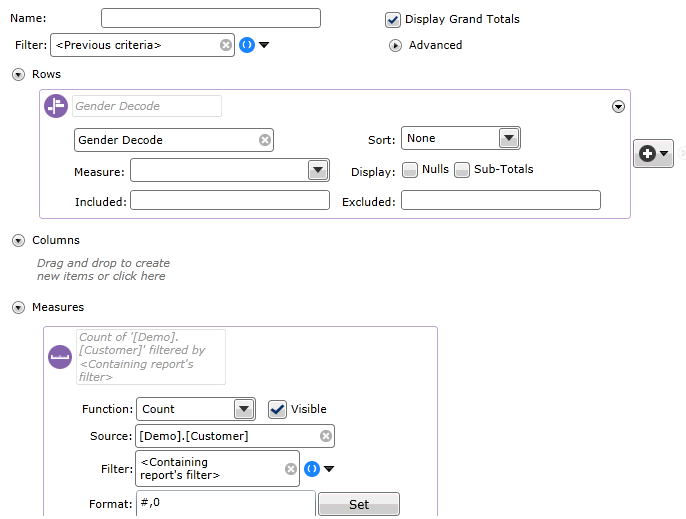
This screen contains the
following configuration fields:
Name:This
is the name of the chart configuration, and is what will be displayed
in the ‘Report Source’ drop-down once saved. Note that additional
report sources can be added to the chart by dragging the Report
tool to the workspace.
Filter:
By default the chart will be filtered by previous criteria, in other
words it will display the segment that is available to it from the
document in which it appears.
Additional filters
can be added with this option that are unique to the chart configuration.
These will be joined at the chart level by the specified join option and
at the report level by the join option that is specified for the entire
chart.
If multiple filters
have been added, check the ones that you want to include in the current
iteration of the chart, and be sure to set the join option of each. Unchecked
filters will be ignored.
There are now three
available items that can be added - Columns,
Rows and Measures.
When dragging columns from the Data Explorer,
columns and rows are configured using the Dimension
configuration settings.
Measures
(mandatory): This option allows you to define the basis of the chart,
i.e. what you are actually measuring, and it is mandatory to configure
at least one measure. It could be a simple count of a table i.e. Customer, Household
or Order, or it could be
something like a mean, or the sum of a database column. More complex
measures can be created using the Calculated
Measure tool.
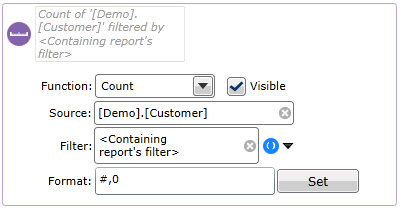
For a simple count,
select a function of ‘Count’
and from the ‘Source’ drop-down
select the relevant table. This is the equivalent of setting the default
resolution level using the drag and drop ‘count’ operation described above.
For more advanced
measures, select a function from Sum,
Average or Standard
Deviation and then select the Source
column that the function will be based on.
Note:
Multiple measures can be added to a chart, allowing the user to select
the one that they want from the Measure drop-down menu in the main chart
configuration options.
The 'Visible' check
box is intended for use with calculated measures where one measure may
be used by another, but wouldn't be displayed on it's own in the final
report. In this case you would uncheck the box.
You can also add additional
filters at the measure level (by default charts will be filtered by the
report level filter where one exists). Measure level filters are unique
to the measure they are part of and are AND’d with the report filter by
default. Where multiple measures have been added to a report, then each
can be filtered differently allowing comparisons to be made.
To add a measure filter,
first clear the <Report Filter>
default by clicking the cross icon. If you then click the drop-down you
will be able to drag and drop filters or click the ‘Create
new...‘ menu to build up the filter from the available options.
Chart Title:
This is the title of the chart that will appear at the top. It is not
a mandatory field and does not have to be unique.